Plain answers about cleanup, privacy, credits, storage, mobile access, and support.
What exactly does AllPicture do?
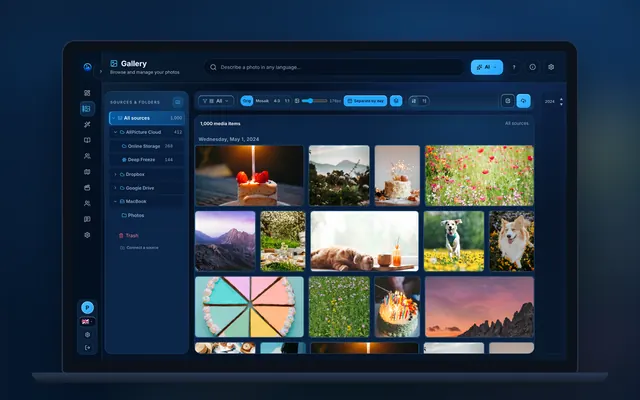
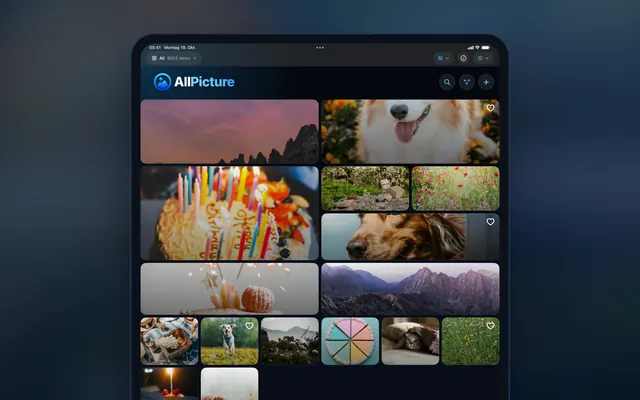
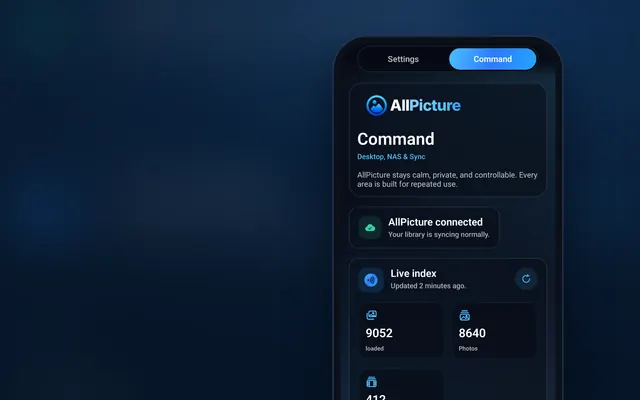
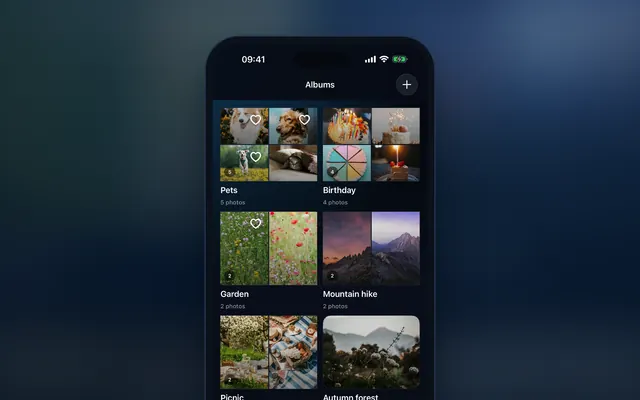
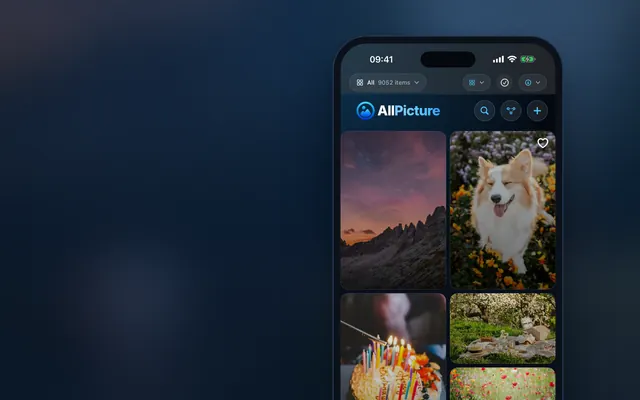
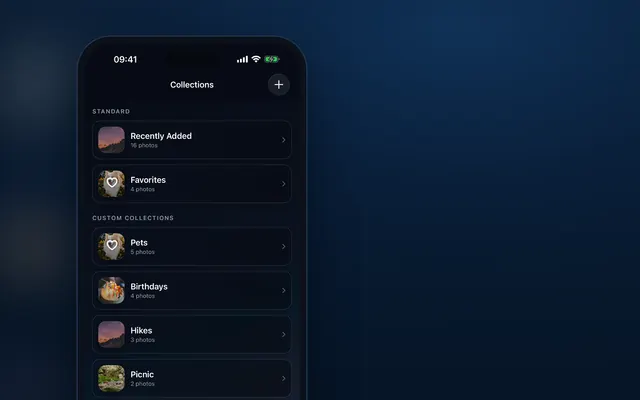
AllPicture connects your phones, cloud folders, NAS, and local drives, removes clutter and duplicates, and presents one clean picture library.
Will WhatsApp memes and screenshots ruin my gallery?
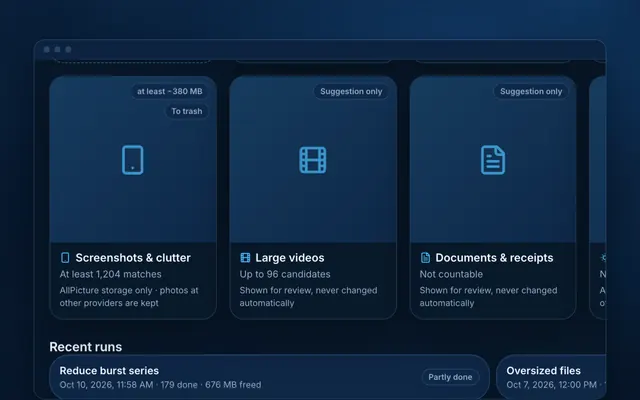
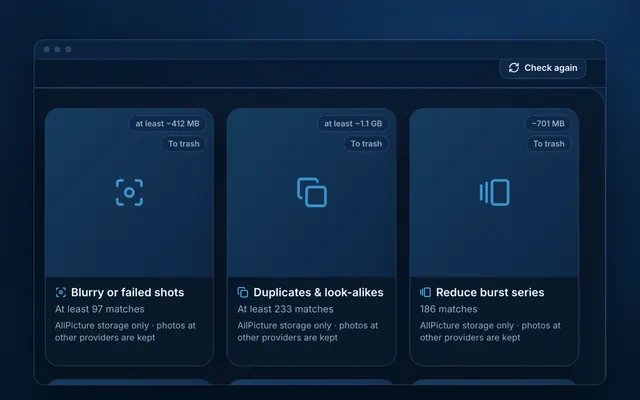
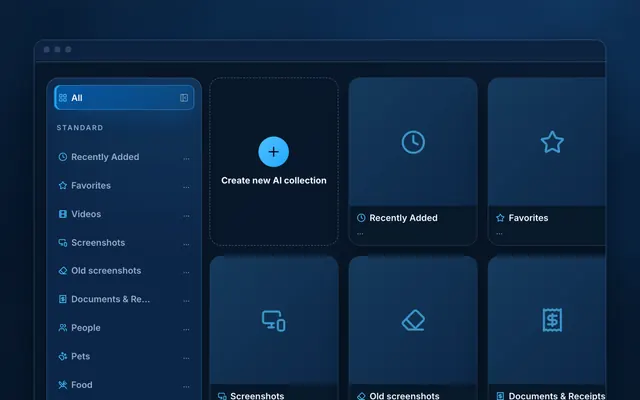
No. AllPicture is designed to separate screenshots, memes, receipts, and similar clutter from the main library so the meaningful pictures stay visible.
Do I have to delete duplicates myself?
No. Duplicate detection is automatic. AllPicture keeps the best version visible and hides lower-quality copies.
Can AllPicture or its AI see my pictures?
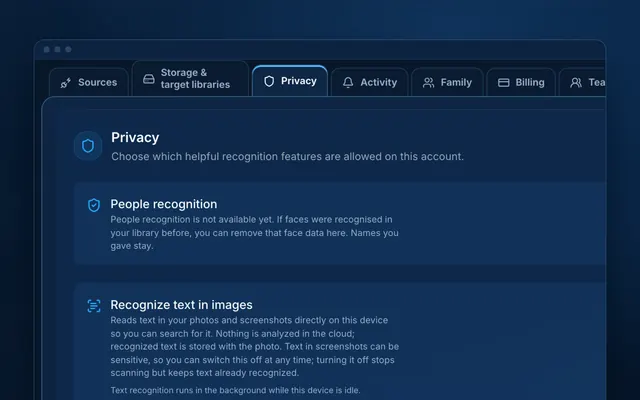
Privacy protections and AI processing depend on the feature, device, and upload path. Review the details before enabling a feature.
Will AllPicture fill up my phone?
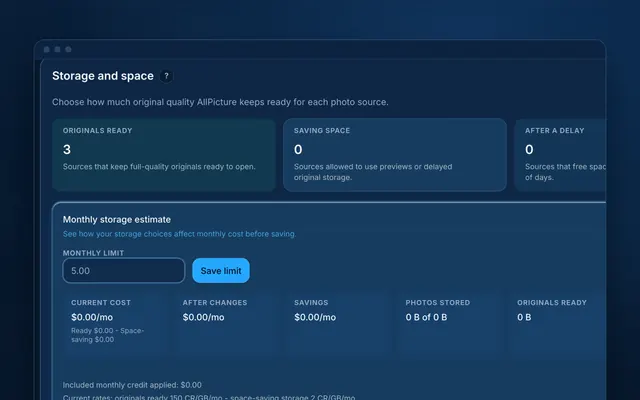
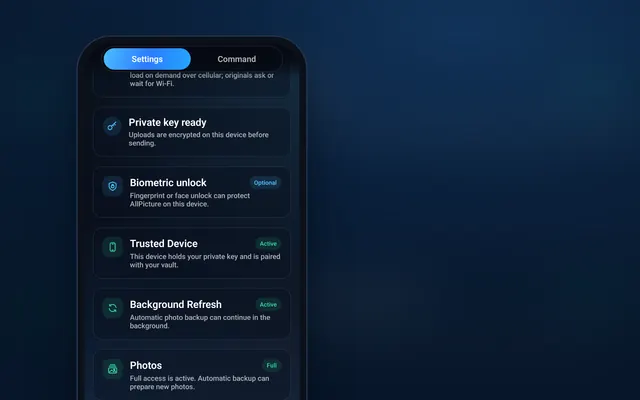
No. Smart previews make the full library feel available on mobile without downloading every original file.
How does pricing work?
AllPicture uses plans and credits for storage and AI actions. If you see an unexpected payment, billing, plan, or charge screen, do not enter payment details; pause and contact support.
What happens if I run out of credits?
Credit limits are intended to pause heavy background work before a user is surprised by extra activity. Your library should remain viewable, and original files on your own devices and connected sources are not deleted by AllPicture. Contact support if a credit or billing state blocks your path.
What happens if I forget my password?
Account recovery requires care because private archives should stay under user control. AllPicture can guide you through the available recovery path for the tested scenario, but you should never send passwords, authentication codes, recovery secrets, or private media in a support message.
Can I download AllPicture now?
Yes. Downloads are open on the download page, which lists the availability of each platform. Create your free account to sign in; no photo upload or library connection is required to sign up.
How do I sign up and sign in?
You sign up with your email address and a password, or continue with Google or Apple. Organization accounts can use single sign-on. If you forget your password, use the password reset on the sign-in screen. Never send passwords or one-time codes to support.
What is the recovery key, and what happens if I lose it?
Your private photos are end-to-end encrypted. After setup you can download a photo recovery key file in Settings; it is the spare key for your photos. If you lose every signed-in device and also do not have the recovery key, nobody can unlock those photos, including AllPicture, and support cannot reset it. Download the file once and keep it in a password manager or another secure place you control.
Which photo sources can I connect?
In Settings you can connect Dropbox, Google Drive, OneDrive, Google Photos, and iCloud as photo sources; the desktop app can also read local folders. Instagram connects an Instagram Business or Creator account for posting. Each connection asks you to sign in with that provider, and you can disconnect it in Settings.
How do I install the desktop app, and does it update itself?
The desktop app is built for Windows, macOS, and Linux. Install it from the download page. The app checks for new versions on its own and installs them automatically, and it waits while you are actively working. If an update does not arrive, install the latest version from the download page. The iOS and Android apps update through the App Store and Google Play.
How do I cancel a plan or get a refund?
Paid plans are available as an option; see the pricing page for the plans offered in your market. Where a paid plan exists, cancel it in the place where you bought it: web subscriptions (billed by Paddle) in your AllPicture account or through Paddle; iOS subscriptions in your Apple ID subscription settings; Android subscriptions in the Google Play app. Cancelling takes effect at the end of the period you already paid for. Refunds are handled by the provider that took the payment: Paddle for web purchases, Apple for App Store purchases, and Google for Google Play purchases. For web purchases you can also write to mail@allpicture.ai and we will pass your request to Paddle.
How do I export my data or delete my account?
Both are in Settings under Account. "Export my data" is free, creates a download of your originals, metadata, albums, and key data, and is limited to one export every 7 days; a finished export stays available for 7 days. Encrypted photos stay encrypted in the export. To delete your account, request deletion in the same place; you may be asked to sign in again first. Deletion is carried out 30 days after your request and you can cancel it until then. Deleting your account does not end a paid subscription, so cancel that separately in the channel where you bought it.
Where can I read about privacy and where my data is processed?
The privacy page and the privacy policy list what is processed, by which providers, and where. For questions about your data or your rights, write to mail@allpicture.ai and do not include passwords, one-time codes, or private photos.
Support
Safe ways to contact AllPicture support and what to include before you send a request.
How do I contact AllPicture Support?
You can reach AllPicture Support through the help form on allpicture.ai or via email at mail@allpicture.ai. Choose the relevant category in the form so your request is routed to the right team.
I signed up but did not get a confirmation email. What should I do?
Please do not sign up repeatedly. First check your spam or promotions folder. If you still cannot find a confirmation, contact mail@allpicture.ai or use the help form at /help. Include the email address you used and the approximate time of signup, but never send a password, login code, payment detail, or private photo.
What information should I include in my support request?
Include a short description, date and approximate time of the issue, your device, operating system, and browser/app version if known. Note the last two to three steps before the issue occurred and whether it repeats. Screenshots are helpful when redacted and free of private media or sensitive account details. Never send passwords, authentication codes, payment details, or private photos.
How quickly will I get a response?
We prioritize support requests by urgency. Reports about possible data loss, security concerns, or unexpected payment screens receive extra attention. General support, onboarding, and feature questions are handled once the team has reviewed them. For urgent cases, please include the relevant details upfront so we can understand the issue more quickly.
I just signed up - who do I contact?
Use the help form or email mail@allpicture.ai. We will guide you through the first steps. While you are getting started, do not treat AllPicture as your only photo archive. Keep your originals and backups in their current location.
I found a security issue - where do I report it?
Please report security vulnerabilities or concerns confidentially to security@allpicture.ai. We handle such reports with priority and will respond as quickly as possible. Please do not share public details until we have reviewed the report.
What happens after I send a support request?
After you send a support request, we review the details, triage the issue, and decide the safest next step. To help us do that, include the details listed in “What information should I include in my support request?” If you suspect data loss, a security issue, or see an unexpected payment screen, stop making changes to the affected data and keep originals, backups, screenshots, and related messages unchanged so we can review the situation accurately.
What happens to my data when I contact support?
We use the information in your support request to review and respond to your issue. Please share only what is needed for the case, and do not send passwords, one-time codes, payment details, or private photos. Support communication may be processed in the systems we use to operate and handle requests. We keep support data only for as long as needed for handling, traceability, and operations.
What does "browse-only / no import" mean?
In controlled first-user rounds, AllPicture may use a narrow browse-only path: account or session, local desktop onboarding, safe indexing, and Gallery browsing, without importing, syncing, moving, deleting, deduplicating, or reconnecting your photo sources. Keep originals and existing backups unchanged, and do not use AllPicture as your only archive during this phase. If a step asks you to import, changes a source, shows missing media, blocks account access, raises a privacy or security concern, or shows a payment or billing screen, pause immediately and contact support with the page name, approximate time, device or browser, expected result, and actual result. Do not send passwords, one-time codes, payment details, private photos, original media files, or private cloud login details.
Popular photo cleanup questions.
Answer-first pages for high-intent searches about duplicates, WhatsApp clutter, private AI, huge libraries, old drives, and cancellation safety.
Multi-source photo library cleanup
Organize photos from every phone and cloud
If your photos are spread across Dropbox, iPhone, WhatsApp, iCloud, Google Photos, and a NAS, start with a simple inventory. List where photos live, note duplicate folders, identify missing date ranges, and choose one folder structure before deciding which tools or workflows belong in your photo organization process.
Start with a source map before any upload: list phones, cloud libraries, WhatsApp folders, old drives, shared albums, and the cleanup decisions that feel risky. AllPicture is built around this no-upload first step.
Do not clean WhatsApp media by blindly deleting a folder. First classify WhatsApp pictures by source, visual similarity, quality, and memory value, then hide or review clutter while keeping real memories and original versions safe.
To remove duplicates safely, compare photos across every source, rank the best version by quality and metadata, keep originals intact until reviewed, and hide lower-quality copies from the main library instead of deleting blindly.
Keep a huge library on your phone without filling it
The best approach is to keep originals in protected source storage, create lightweight smart previews for browsing, and download full-resolution files only when you need them.
Use a photo organizer that runs sensitive AI locally where possible, encrypts private media and metadata, and clearly states that your personal pictures are not used to train public AI models.
For end-to-end encrypted photos, choose a family archive system that protects private media before cloud storage, limits provider visibility, explains recovery clearly, and avoids using personal photos for AI training.
Do not migrate a messy library by importing every export into a new cloud at once. First index the old and new libraries, compare overlap, preserve metadata, group duplicates, and only then decide what should become the clean visible library.
Treat old drives and NAS folders as source archives. Index them, identify duplicates and corrupted or low-value media, preserve original files, and expose the best memories through one clean library instead of manually renaming everything first.
Separate real memories from screenshots and clutter
Yes, a good photo organizer can classify likely clutter and likely memories, but it should be conservative: hide or group low-value items first, then let you review anything risky before deletion.
Cancellation, export, lock-in, and original file safety
What happens to your originals if you cancel
Your original photos should remain accessible in the places you own or connected source services. A trustworthy organizer should never make cancellation mean losing irreplaceable originals or being locked out of a human-readable archive.
Google Photos is excellent at automatic organization inside its own cloud, but it is not end-to-end encrypted and it only organizes what you upload to Google. AllPicture is being built as a privacy-first library layer across Google Photos, iPhone, WhatsApp, iCloud, Dropbox, NAS, and local drives — with encryption and provider visibility depending on the selected feature and upload path.
iCloud Photos is strong inside the Apple ecosystem, and with Advanced Data Protection enabled it can even be end-to-end encrypted. Its limit is scope: it only sees the Apple side of a family archive. AllPicture is being built for the whole mess — WhatsApp media, Android phones, Windows folders, NAS, old drives, and other clouds in one private library.
A classic duplicate photo finder scans folders on one machine and flags byte-identical or visually similar files. That helps once. But scattered family libraries recreate duplicates constantly — across phones, chats, clouds, and backups — so AllPicture is being built as a continuous, source-aware library that keeps the best version visible instead of a one-time scan.